

Getting Started with Biz Core API
Welcome to the Biz Core developer portal. This guide walks you through everything you need to make your first API call.
What is Biz Core?
Biz Core is a subscription-based, modular SaaS platform for payment facilitation and loan management. It exposes a Web API over HTTPS, using HAWK authentication and JSON for data exchange.
Modules include Customers, Leads, Lending, and Payments — each with its own dedicated endpoints. Access to a module is controlled via your subscription configuration and the API keys issued to you.
Base URLs
| Environment | URL |
|---|---|
| Production | https://api.bizcore.com.au |
| UAT | https://bizcore-api.bizcorebeta.com.au |
A sandbox environment is available during development and testing. Contact your FSoft account manager for access — note that sandbox usage may incur fees.
Setup Overview
flowchart LR
    A[Submit<br/>subscription form] --> B[Generate<br/>API keys]
    B --> C[Implement<br/>HAWK signing]
    C --> D[Make first<br/>API call]

    style A fill:#e6f1fb,stroke:#185fa5,color:#0c447c
    style D fill:#eaf3de,stroke:#3b6d11,color:#173404
Step 1 — Complete Onboarding
Before you can access the API, your business must be onboarded as a Biz Core subscriber. Start by submitting the Subscription Setup Form.
Once approved, you'll receive your Subscription ID and portal access. API keys are self-service — generate them yourself via the portal in Step 2.
Step 2 — Generate and Manage API Keys
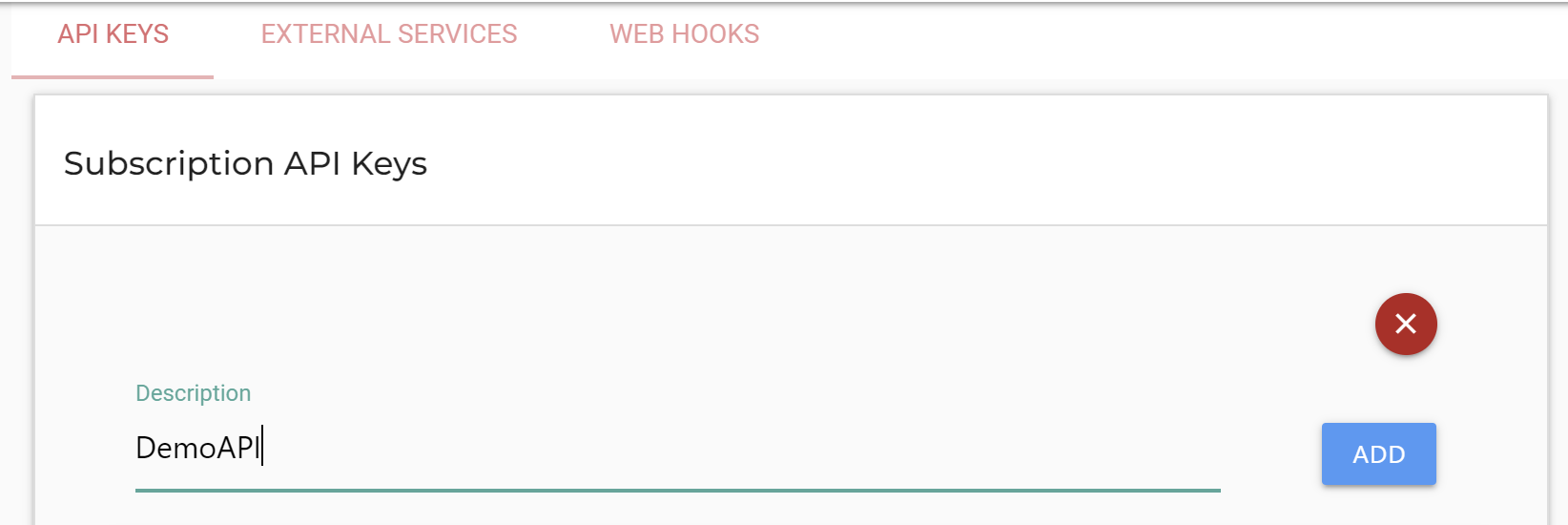
Subscriber administrators can issue and manage API keys via the portal at Settings → Advanced → Subscription API Keys.
-
Click the + icon, enter a description for the integration, and click Add.
-
The Key ID and Key are displayed once. Record both values, then click OK, I HAVE SAVED THIS INFORMATION.
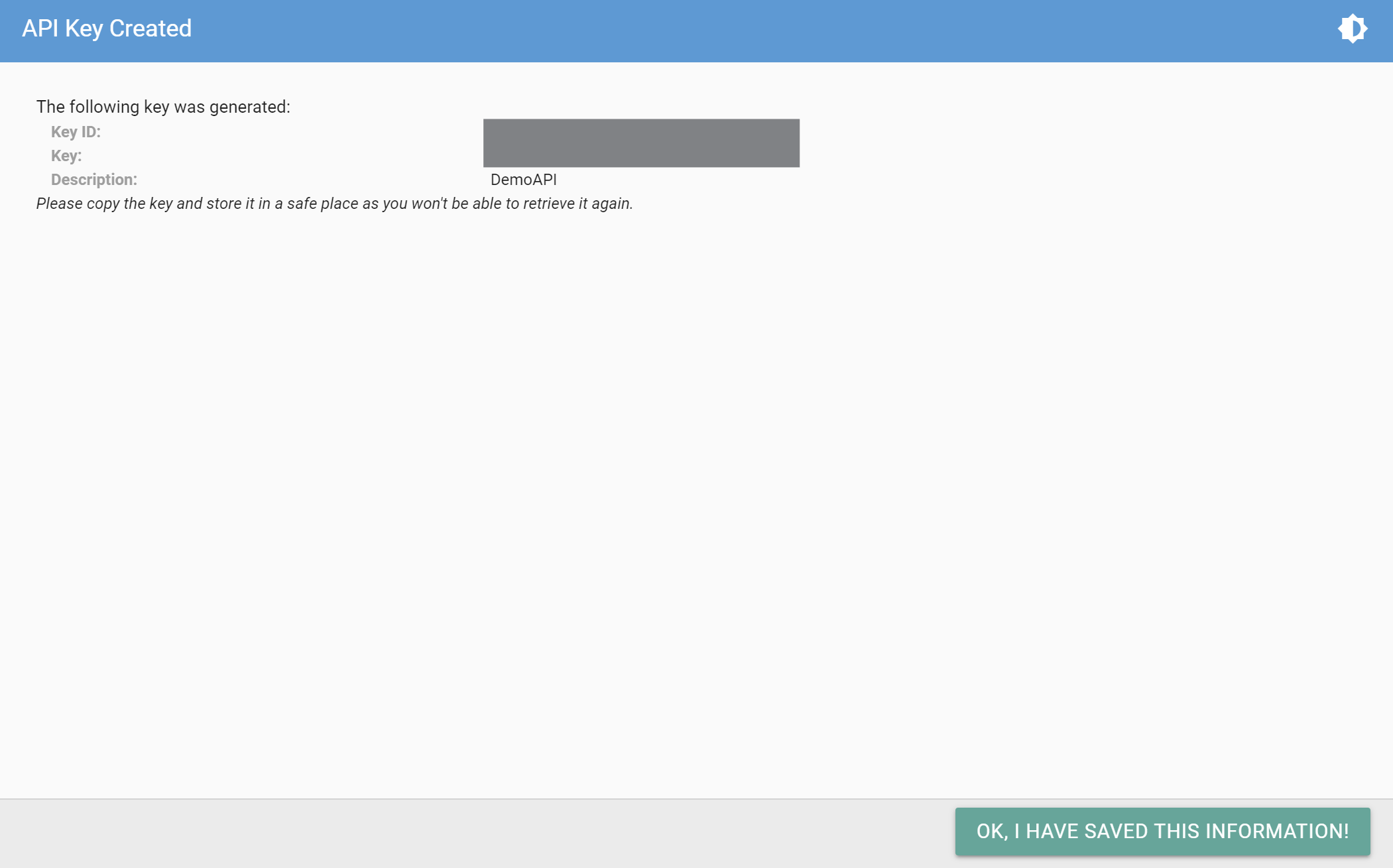
⚠️ Important: Treat these as production secrets. They cannot be retrieved again once the dialog is closed. Never commit to source control, never embed in client-side code, and rotate if exposure is suspected.
-
Some modules require additional per-module activation after key creation. For example, Leads Module keys must be enabled separately under Settings → Advanced → Leads Settings. See the module-specific docs for activation steps.
Step 3 — Implement HAWK Authentication
Biz Core uses the HAWK authentication scheme — an HTTP authentication scheme that uses a shared secret to compute a Message Authentication Code (MAC) over the request.
sequenceDiagram
    autonumber
    participant App as Your Application
    participant Lib as HAWK Library
    participant API as Biz Core API

    App->>Lib: Build request (URL, method, body)
    Lib->>Lib: Compute MAC using<br/>Key ID + Secret Key
    Lib-->>App: Authorization: Hawk id="...", mac="..."
    App->>API: HTTPS request + Authorization header
    API->>API: Validate signature<br/>Check Subscription ID

    alt Valid request
        API-->>App: 200 OK + JSON response
    else Invalid signature or disabled key
        API-->>App: 401 Unauthorized
    end
Recommended libraries
For other languages, please contact your FSoft account manager — sample code may be available on request.
Step 4 — Make Your First API Call
A good starting point is a low-risk read endpoint such as Get Countries or Get Loan Reasons. These return static reference data and are useful for verifying your HAWK implementation end-to-end before attempting any write operations.
Browse the API Reference to explore all available endpoints.
Error Handling
| Status | Meaning | Action |
|---|---|---|
200 | Success | Process the response body. |
400 | Bad Request — validation failed | Inspect the response body for field-level errors and correct the payload. |
401 | Unauthorized — invalid or disabled HAWK credentials | Verify your Key ID, Secret Key, signing logic, and that the key is enabled in the portal. |
403 | Forbidden — your subscription does not permit this action | Contact your FSoft account manager. |
404 | Not Found — the resource or endpoint does not exist | Check the URL path and resource IDs. |
422 | Unprocessable Entity — business rule violation | Inspect the response body for the rule that failed. |
429 | Too Many Requests — rate limit exceeded | Back off and retry with exponential delay. |
5xx | Server error | Retry idempotent requests with backoff. Persistent issues should be reported via Status Page. |
Next Steps
- Reference Data Endpoints — Catalogue of resource endpoints (countries, products, frequencies, etc.) and caching guidance.
- Webhooks — Receive push notifications when Lead, Application, or Loan status changes.
- Lending Module — Loan Creation — End-to-end workflow for originating a loan.
- Leads Module — Submit and progressively update leads.
- Payment Module — Schedule, execute, and monitor payments.
Updated 3 months ago