
Biz Core Loan Creation Guide
Loan Creation Workflow
This guide outlines the end-to-end API process for creating a loan in Biz Core. It details each step in sequence, showing data dependencies and the logical flow between API calls.
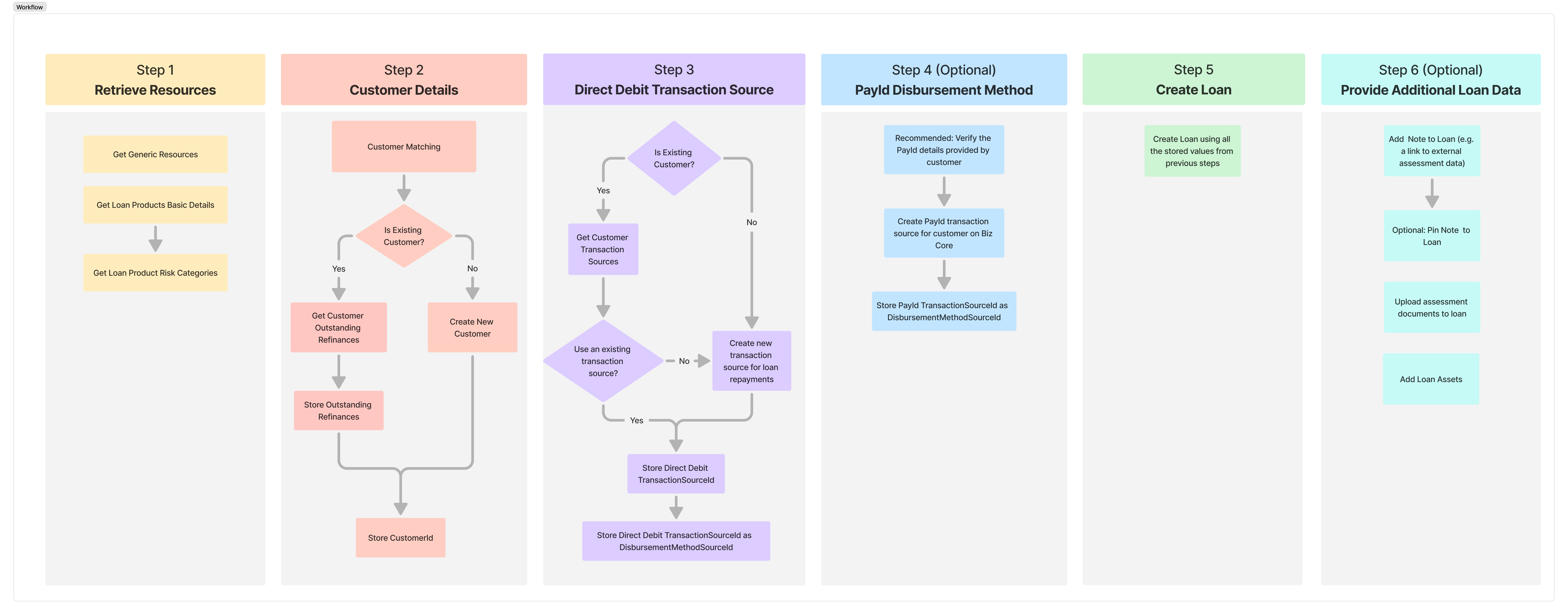
Overview
Loan creation in Biz Core involves the following stages:
- Retrieve Resources
- Customer Details
- Create Direct Debit Transaction Source
- (Optional) Set PayID as Disbursement Method
- Create Loan
- (Optional) Provide Additional Loan Data
Each step describes the relevant API endpoints, their purpose, and the expected outputs.
🟨 Step 1: Retrieve Resources
Biz Core offers a suite of auxiliary APIs designed to help third parties efficiently build data collection forms and validate information based on loan product definitions. Retrieving these resources in advance ensures accurate and consistent data mapping across systems.
Note: It is possible to locally cache this data instead of retrieving it from the API before each loan creation request. However, please be aware that any subsequent updates or modifications to these datasets will not be automatically synchronised with your system. Such updates are infrequent but may occur.
Endpoints
- Get Countries List — Retrieves all supported countries.
- Get All States by Country — Retrieves all states by country.
- Get Vehicle Types — Retrieves all supported vehicle types.
- Get Property Types — Retrieves all supported property types.
- Get Marital Statuses — Retrieves marital status options.
- Get All Phone Types — Retrieves supported phone types.
- Get All Frequencies — Retrieves supported frequencies.
- Get All Genders — Retrieves gender options.
- Get All Transaction Source Types — Retrieves all supported transaction source types.
- Get PayID Types — Retrieves all supported PayID types.
- Get Loan Reasons — Returns a list of valid loan purposes.
- Get Loan Products Basic Details — Retrieves available loan products with key details such as terms, limits, and fees.
- Get Loan Product Risk Categories — Fetches risk classifications associated with each loan product.
Output
All reference data should be cached locally for use in later steps, particularly during customer and loan creation.
🟥 Step 2: Customer Details
This step gathers or verifies all customer information required to proceed with loan creation.
Workflow
-
Customer Matching Determine if the customer already exists using identifiers such as email, name, or phone number. Customer matching can be performed on both the third-party side and within Biz Core (to be implemented) to identify existing customers.
-
If Existing Customer
- Retrieve the customer’s outstanding refinance obligations .
- Store these results as
OutstandingRefinances. - Retain the existing
CustomerIdfor later use.
-
If New Customer
- Create a New Customer.
- Store the generated
CustomerId.
Output
CustomerIdOutstandingRefinances(if applicable)
🟪 Step 3: Create Direct Debit Transaction Source
This step defines how loan repayments will be collected through a Direct Debit mechanism.
Workflow
-
Check if Existing Customer
- If yes, retrieve all linked transaction sources using Get Customer Transaction Sources.
- If no, proceed to create a new transaction source.
-
Choose an Option
- Use an existing bank account transaction source.
- Create a new transaction source for loan repayments.
-
Store Direct Debit Source
- Save the returned
TransactionSourceId. This transaction source is going to be used to Direct Debit loan repayments. - Also store
TransactionSourceIdasDisbursementMethodSourceId.
- Save the returned
Output
TransactionSourceIdDisbursementMethodSourceId
🟦 Step 4 (Optional): Set PayID as Disbursement Method
If loan funds will be disbursed via PayID, create a PayID transaction source for the customer.
Workflow
- Recommended: Verify PayId details that have been provided by customer.
- Create a PayID transaction source for the customer.
- Store the resulting PayId
TransactionSourceIdas theDisbursementMethodSourceId.
Output
DisbursementMethodSourceId(PayID source)
🟩 Step 5: Create Loan
Once customer and transaction source data are ready, the loan can be created.
Workflow
-
Use the stored values from previous steps:
CustomerIdLoanProductIdDisbursementMethodSourceId- DirectDebit
TransactionSourceId - Loan parameters (e.g., amount, term, start date)
-
Set the loanProvider name so the loan can be distinguished from loans originated by Biz Core for future reporting purposes.
-
Call Create Loan to create the loan record in Biz Core.
Output
LoanId(unique identifier for the newly created loan)
🟦 Step 6 (Optional): Provide Additional Loan Data
You can attach or link the assessment or credit decision data to the created loan for traceability. Additionally you can create a loan asset (security).
Workflow
- Add Note to Loan — Creates a note containing assessment or decisioning details or external links.
- Pin Note to Loan — Pins this note to the loan messages section for quick reference.
- Add assessment documents to Loan — Upload assessment documents to loan.
- Add Loan Asset(s)
Output
- Additional data successfully linked to the loan record.
🧩 Summary of Key Entities
Step | Purpose | Output |
|---|---|---|
Step 1 | Retrieve reference data | Country list, vehicle types, property types, country states, marital statuses, loan reasons, products, risk categories |
Step 2 | Identify or create customer Optional: create customer asset(s) | CustomerId, OutstandingRefinances |
Step 3 | Configure repayment method and set disbursement method | TransactionSourceId, DisbursementMethodSourceId |
Step 4 | Optional: Configure PayID as disbursement method | DisbursementMethodSourceId |
Step 5 | Create loan record | LoanId |
Step 6 | Optional: Provide Additional Loan Data | Create a note with a link to assessment documents and/or upload assessment documents to the loan. Create loan assets. |
PayId Test Data
| PayID | PayIDType | Expected Behaviour |
|---|---|---|
[email protected] | Fails with 400 status code | |
[email protected] | Successful payment | |
orgnname | ORG | Successful payment |
+61-454444555 | Phone | Successful payment |
34455445454 | ABN | Successful payment |
Updated 5 months ago